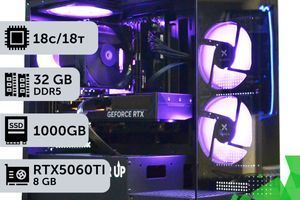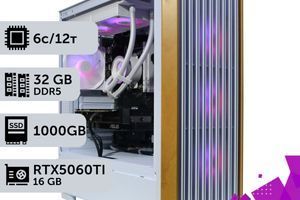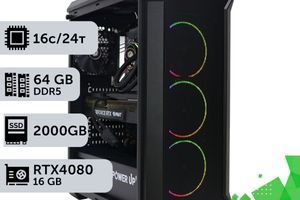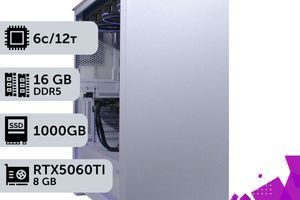
Key Takeaways (TL;DR):
- PCIe 5.0 accelerates to 12,000–14,000 MB/s in sequential read — but games use random read of small blocks (4K), where the difference with PCIe 4.0 is just a few percent.
- DirectStorage is supported by about 7 games on the market, and the technology provides a real boost when upgrading from SATA to NVMe (up to +32% faster loading speed), not when switching from PCIe 4.0 to PCIe 5.0.
- Upgrading from 1 TB to 2 TB in an identical PowerUp build costs from 4,200 UAH for pure volume — switching to a faster drive of the same capacity costs 16,000+ UAH for speed you won't see in a game.
- PCIe 5.0 SSDs get noticeably hotter than PCIe 4.0 and will throttle without a good heatsink, losing part of their advertised speed.
After the story with RAM, logic suggests: since we saved on RAM, it's time to get the fastest NVMe SSD drive on PCI-Express 5.0 — 12,000–14,000 MB/s, and then games will definitely fly. They won't: the price difference between a top-tier PCIe 5.0 drive and a standard NVMe of the same capacity is twofold, but in real gameplay, the difference is just a few percent, not the multiple times shouted about in ads.
Sellers and bloggers use the same trick as with memory: they show flashy numbers from synthetic benchmarks like CrystalDiskMark, where chart bars soar past 12,000 MB/s, and they don't mention that games almost never read data the way these tests measure it. Current 2026 platforms — AM5 (AMD Ryzen 9000) and LGA1851 (Intel Core Ultra 200) — equally support both PCIe 4.0 and PCIe 5.0 drives, so the choice is a matter of common sense and budget, not compatibility.
We break down how sequential speed differs from what actually matters in games, how much DirectStorage really provides, what the overpayment for speed costs in the PowerUp catalog as of August 27, 2026 — and where it's more effective to invest the savings. This material continues the topic started in the article about DDR5 RAM: the principle "capacity is more important than benchmark scores" works here too.
| Resolution | Graphics Card | Processor | Drive | Budget, from |
|---|---|---|---|---|
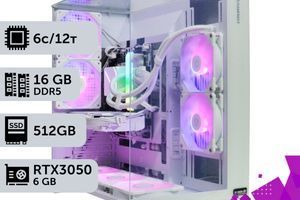
| Full HD (1080p), budget | GeForce RTX 5050 8GB | AMD Ryzen 7 8700F | 2 TB NVMe PCIe 4.0 | 66,700 UAH |
| Full HD (1080p), comfort | GeForce RTX 5060 8GB | AMD Ryzen 7 8700F | 2 TB NVMe PCIe 4.0 | 67,800 UAH |
| 1440p (2K) | GeForce RTX 5070 12GB | Intel Core i5 14600K | 2 TB NVMe PCIe 4.0 | 95,200 UAH |
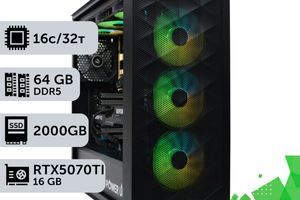
| 1440p (2K), High/Ultra | GeForce RTX 5070 Ti 16GB | AMD Ryzen 7 8700F | 2 TB NVMe PCIe 4.0 | 102,900 UAH |
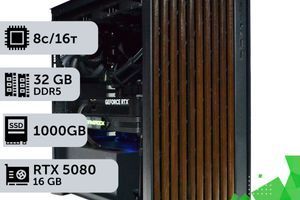
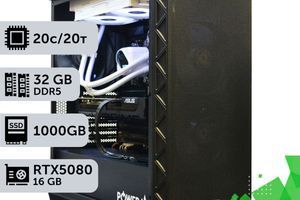
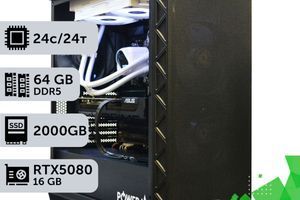
| 4K, maximum | GeForce RTX 5080 16GB | Intel Core i7 14700K | 2 TB NVMe PCIe 4.0 | 130,700 UAH |
How marketers sell you megabytes per second
The whole magic of numbers like 7000, 12,000, 14,000 MB/s relies on one trick: you are shown sequential (linear) read and write speeds. According to professional reviews in 2026, PCIe 4.0 provides 5000–7400 MB/s of sequential read, while PCIe 5.0 delivers 12,000–14,000 MB/s — almost double on paper.
Linear speed is when the drive copies one huge monolithic file, like a 50 GB movie. Here, PCIe 5.0 truly shines. A game is structured differently: it's not one big file, but millions of small textures, scripts, sounds, and 3D models scattered across folders.
- When launching a game and loading levels, it's not sequential speed that decides the outcome, but the random read speed of small blocks (4K) — here the difference between a top PCIe 5.0 and a solid PCIe 4.0 is a matter of a few percent.
- Booting Windows 11 from a PCIe 4.0 drive takes 8–12 seconds, from PCIe 5.0 — 6–9 seconds: there is a difference, but it's unnoticeable in everyday use.
- A stable framerate during gaming depends on the graphics card and processor, not on how many megabytes per second the drive delivers on paper in CrystalDiskMark.
The breakdown of current SSD prices in Ukraine in 2026 is regularly published by specialized Ukrainian media like Compbest: for a gaming PC in 2026, the optimal price/performance ratio remains a 1–2 TB NVMe SSD on PCIe 4.0, while PCIe 5.0 only makes sense for professional tasks with sustained linear workloads.
Another bonus of the M.2 format that marketers modestly keep quiet about: such a drive doesn't need SATA and power cables, unlike old 2.5-inch drives. For cable management inside the case, this is a tangible plus regardless of whether it's PCIe 4.0 or 5.0 — the connection format doesn't affect FPS boosting in games at all.
Should you expect a miracle from DirectStorage?
DirectStorage technology — where the graphics card reads textures directly from the drive, bypassing some of the processor load — has been around for a few years, but in reality, as of 2026, it is fully implemented in only about 7 games: Forspoken, Ratchet & Clank: Rift Apart, Forza Motorsport, Horizon Forbidden West Complete Edition, Marvel's Spider-Man 2, Assassin's Creed Shadows, and The Last of Us Part II.
Where DirectStorage actually works, the effect is noticeable — but not the one expected. In Ratchet & Clank: Rift Apart tests on a GeForce RTX 4080 in 4K, upgrading from a SATA SSD to an NVMe with active DirectStorage increased average FPS by 9% (from 118.6 to 129.7) and, more importantly, minimal FPS (1% low, a stability indicator) — by 26% (from 85.0 to 107.4). Loading speed increased by 23–32% depending on graphics settings.
The key detail omitted in ads: this is the difference between SATA and NVMe, not between an NVMe on PCIe 4.0 and PCIe 5.0. If you already have any modern M.2 NVMe drive installed, upgrading specifically to PCIe 5.0 adds completely different, much more modest numbers — single-digit percentages, not tens.
| Game | SATA SSD | NVMe PCIe 4.0 | NVMe PCIe 5.0 |
|---|---|---|---|
| Cyberpunk 2077 (RT Ultra), 1% low FPS | 71 FPS | 89 FPS | 91 FPS |
| S.T.A.L.K.E.R. 2 (Ultra, UE5), 1% low FPS | 42 FPS | 58 FPS | 60 FPS |
| Counter-Strike 2 (Low), 1% low FPS | 310 FPS | 340 FPS | 344 FPS |
The pattern is immediately visible: switching from SATA to NVMe removes the bulk of drops and stuttering in open worlds like S.T.A.L.K.E.R. 2 (+38% to frame stability), and the further jump to PCIe 5.0 adds only a few percent.

Why drive capacity matters more than speed
Modern 2026 games weigh 100–200 GB each: open worlds on Unreal Engine 5, uncompressed multi-language audio tracks, and up to 8K textures inflate installations faster than drive speeds increase. A 1 TB drive, factoring in the OS and Windows 11, holds an average of 3–4 such games simultaneously — and that's without updates, which methodically add another 10–30 GB per patch.
- 512 GB — only enough for the OS and one or two games; for a new 2026 build, this is already the bottom limit.
- 1 TB — the working minimum for an active gamer with a constant rotation of 3–4 titles.
- 2 TB — the comfortable standard of 2026: a library of 8–10 games without the need to constantly delete something.
- 4 TB — for those who keep a library of 15+ games, record gameplay, or use the PC for streaming and video editing between sessions.
Upgrading capacity is noticeably cheaper than upgrading speed: switching from 1 TB to 2 TB within the same drive lineup at PowerUp costs an average of 4,200 UAH — meaning the extra capacity literally doesn't break the bank if you don't chase the fastest chip.
Saving on SSD speed: pros and cons
Advantages
- ✔Saving 4,200–23,000 UAH on the same capacity — this money works more effectively in a graphics card, processor, or an efficiency-certified power supply.
- ✔Less heat and no risk of throttling — PCIe 4.0/3.0 drives work without giant heatsinks and noisy fans.
- ✔For the same budget, you can get twice the capacity — critical when a single game weighs 100–200 GB.
- ✔The difference in level loading and Windows booting is 1–3 seconds, which doesn't affect the gaming experience.
Disadvantages
- ✖For 4K/8K video editing, RAW photo processing, or large datasets, the linear speed of PCIe 5.0 provides a real, measurable boost.
- ✖DirectStorage in a few games gives a noticeable boost to FPS stability — but only when transitioning from obsolete SATA, not from a standard NVMe.
- ✖Some future games may utilize high bandwidth more actively — today's overpayment could become the norm in 2–3 years.
The real harm of overly fast SSDs: temperature and price
Buying a top-tier drive on a limited budget gives you not only zero gaming boost but also real inconveniences. PCIe 5.0 SSDs get noticeably hotter than PCIe 4.0: without a massive heatsink, and sometimes a dedicated fan, the controller throttles and drops speed below the level of a regular drive — meaning the overpayment literally zeroes itself out under load. Manufacturers increasingly offer ready-made water cooling for CPUs and GPUs, but drives don't need such solutions — a high-quality aluminum heatsink and standard case airflow handle the heat dissipation.
It's easy to check the drive's real behavior under load: a half-hour system stress test with continuous writing of a large file in CrystalDiskMark or AIDA64 will immediately show whether the controller throttles specifically in your case, and not in the manufacturer's laboratory conditions.
In the PowerUp catalog, this is also visible in the price: the cost of a build increases with drive capacity in two different scenarios. If the upgrade is within the same NVMe lineup, 1 TB → 2 TB adds an average of 4,200 UAH to the build price — this is the pure cost of extra gigabytes at the same speed. But where upgrading capacity is accompanied by switching to a faster and more expensive drive, the same 1 TB → 2 TB addition costs 16,000–16,200 UAH: an overpayment for megabytes per second, not for storage gigabytes.
- Additional noise: small fans on PCIe 5.0 heatsinks start crackling at high RPMs after a few months of use.
- Additional case heating: a drive working on the edge of throttling gives off more heat into the system's overall airflow, slightly stressing the rest of the cooling.
- Height clearance: massive PCIe 5.0 heatsinks don't always fit under the graphics card in compact cases — this should be checked before buying.
How much does the overpayment for speed cost in Ukraine?
In the PowerUp catalog as of 08/27/2026, it is clearly visible that the price increase alongside drive capacity follows two different scenarios — depending on whether only the capacity changes or the drive's speed class does as well:
| Capacity Upgrade | Same SSD class | Switch to a faster SSD |
|---|---|---|
| 512 GB → 1 TB | +3,100 UAH | +15,000–15,100 UAH |
| 1 TB → 2 TB | +4,200 UAH | +16,100–16,200 UAH |
| 2 TB → 4 TB | +11,000 UAH | +23,000 UAH |
The difference between the columns is not an abstraction: for example, upgrading a Core i5 14600K + RTX 5070 Ti from 1 TB to 2 TB within the same drive lineup costs 4,200 UAH (108,800 → 113,000 UAH), whereas for a Core i7 13700K + RTX 5070, the same capacity boost costs 16,200 UAH (84,500 → 100,700 UAH), because the drive class changes along with the capacity. Before paying for the second figure, you should clearly understand what exactly you are buying — terabytes or megabytes per second.
Where to invest your savings: graphics card or processor
The logic is the same as with memory: moving one step up the GeForce RTX graphics card lineup provides a real 20–30% FPS boost — something you actually see on screen, unlike the 1–3% from a drive. Upgrading from an RTX 5070 to an RTX 5070 Ti in 1440p raises the frame rate in Cyberpunk 2077 on Ultra settings from an average of 108 to 128 FPS.
The second option is the processor. For open worlds with active asset streaming (a typical scenario where the drive used to be blamed), the bottleneck is more often a lack of AMD Ryzen processor or Intel cores or cache, not SSD speed: the system unpacks and processes data in parallel, and a weak CPU creates a queue that even the fastest drive won't clear.
| Investment direction | Real effect |
|---|---|
| PCIe 4.0 → PCIe 5.0 (same build) | +1–3% to 1% low FPS, 0% to average FPS |
| RTX 5070 → RTX 5070 Ti (same CPU) | +18–20% average FPS |
| Core i5 14400F → Core i5 14600K (same GPU) | +8–12% average FPS, fewer drops |
The rule is the same as in the RAM article: the system's bottleneck (bottleneck) is almost never the drive. Secure the graphics card and processor for your target resolution first, and only when the budget for them is covered does it make sense to consider a faster SSD.

When PCIe 5.0 is actually needed
Three scenarios where overpaying for drive speed pays off:
- Video editing and 4K/8K workflows. Exporting and scrubbing large video files specifically stress linear speed — where compressed game assets load in small blocks, an editing project is read and written sequentially, and PCIe 5.0 reduces render time by noticeable percentages.
- Working with large datasets and virtual machines. Copying and unpacking tens of gigabytes of data at once, like in development, analytics, or local LLM models, is that rare consumer scenario where the advertised 12,000+ MB/s actually deliver in practice.
- Professional esports with recording and broadcasting. For an esports build that simultaneously renders a game, records at a high bitrate, and streams — the total disk load is higher than in regular gaming, and the speed headroom reduces the risk of drops during parallel recording.
For a standard gaming PC — from budget Full HD to top-tier 4K gaming with DLSS technology and ray tracing — it's smarter to secure a comfortable 2 TB on PCIe 4.0 and put the difference towards the GPU or CPU.
How to choose an SSD for a gaming PC: step-by-step guide
A step-by-step guide to help you choose a drive for a 2026 gaming PC based on real needs, not synthetic benchmark numbers.
Step 1: Assessing your game library size
Calculate how many games you keep installed simultaneously and multiply by the average modern installation size of 100–150 GB. Add 100–150 GB for the OS, Windows 11, and updates — this way you get a realistic minimum capacity, not a marketing guideline.
Step 2: Choosing an interface based on tasks, not ad numbers
For games, default to NVMe on PCIe 4.0 — it fully covers gaming needs. PCIe 5.0 only makes sense for regular 4K/8K video editing, working with large datasets, or virtual machines.
Step 3: Checking the M.2 slot on the motherboard
Check your motherboard specifications to see which M.2 slot supports PCIe 5.0 (usually only the first one, closest to the CPU) and whether it comes with its own heatsink — this is critical for top-tier drives.
Step 4: Checking write endurance (TBW) and warranty
Look at the TBW (terabytes written over its lifespan) and the warranty period — 5 years (60 months) from a reliable manufacturer is sufficient for a gaming PC. A higher price tag without an increase in these two parameters is paying for marketing, not reliability.
Step 5: Checking DirectStorage relevance for your library
If your library doesn't include games from the short list of those supporting DirectStorage, don't overpay for this technology separately — focus on capacity and upgrading from SATA to NVMe if you still have an old drive.
Frequently Asked Questions (FAQ)
How many TBs do you need for games in 2026?
2 TB is the comfortable standard for a library of 8–10 modern games. 1 TB remains the working minimum for an active rotation of 3–4 titles, while 4 TB is needed for a library of 15+ games or concurrent streaming and editing.
Is it worth overpaying for PCIe 5.0 over PCIe 4.0?
For gaming — no: the difference in real gameplay is just a few percent. The overpayment is justified only for 4K/8K video editing, large datasets, and virtual machines, where the workload is genuinely linear.
Does DirectStorage actually speed up games?
Yes, but only when transitioning from a SATA SSD to an NVMe — where the FPS stability boost reaches 26–38%. The technology is supported by about 7 games, and the shift from PCIe 4.0 to PCIe 5.0 no longer yields a noticeable difference.
Is a SATA SSD still relevant for a gaming PC in 2026?
Only as a secondary drive for archiving games and files. For the system drive and active game library in 2026, only NVMe makes sense — the difference from SATA in open-world FPS stability is palpable.
What's more important — TBW (write endurance) or drive speed?
For a gaming scenario, TBW and warranty are more important than speed: a typical gamer won't use up even a fraction of the rated write endurance over years of use, but the warranty directly determines what happens if the drive fails.
Do you need a heatsink on an M.2 SSD for a gaming PC?
For PCIe 4.0, the stock motherboard heatsink is sufficient in most cases. For PCIe 5.0, a separate heatsink is essentially mandatory — without it, the drive throttles upon the very first large file transfer.
One 4 TB SSD or two 2 TB SSDs — which is better?
For a typical gaming PC, a single larger-capacity drive is simpler and doesn't take up an extra M.2 or SATA slot. Dual drives only make sense if you want to physically separate the OS and games onto different disks for easier maintenance.
The economics are the same as with memory: overpaying for SSD speed in 2026 buys single-digit percentages you won't see in-game, whereas the same budget invested in a graphics card or processor yields 10–30% more real FPS. Get 2 TB of NVMe on PCIe 4.0 with a 5+ year warranty, and channel the 4,200–23,000 UAH difference into where it actually matters.
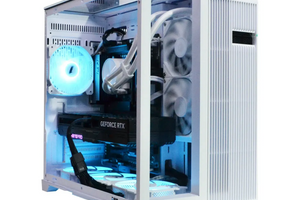
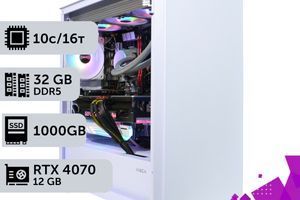
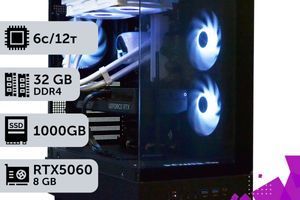
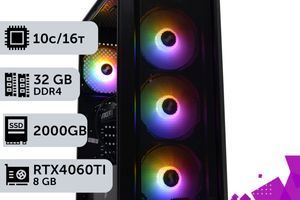
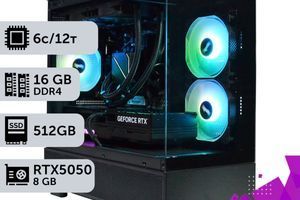
In the catalog of ready-made gaming PCs at PowerUp, balanced configurations with the right ratio of storage, processor, and graphics card for Full HD, 1440p, and 4K are already assembled. If you need a custom PC tailored to a specific library size and budget, PowerUp engineers will select the drive and other components individually.