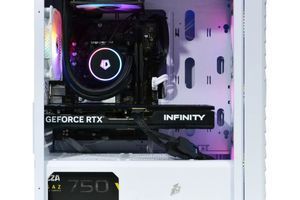
Is your trusty gaming PC, which once conquered any AAA title on ultra graphics settings, now struggling to deliver a stable 60 FPS even in less demanding online games? Frame rate drops, stutters, and the need to lower the resolution are familiar symptoms indicating that your hardware has reached its performance limit. However, a complete switch to a new platform is a significant investment and often unjustified.
A proper, targeted PC upgrade is not an art but an exact science based on data analysis, understanding hardware architecture, and identifying the real system bottleneck. In this guide, we will break down a methodology for sequential performance improvement that will help you avoid common mistakes: buying incompatible components, choosing an underpowered PSU, or creating a situation where a new powerful component is idle due to the weakness of others.
Key Takeaways (TL;DR):
- The primary task is diagnostics. Use monitoring utilities (MSI Afterburner, HWInfo) to identify the component that is 99-100% loaded in games. This is your bottleneck.
- Upgrading the video card provides the most significant FPS boost but requires checking the power and connectors of the power supply unit (PSU), as well as the physical dimensions of the case.
- Don't ignore the platform. Installing a top-tier video card with an outdated processor (e.g., a 4-core Intel Core i5) will lead to a serious bottleneck and won't unlock the GPU's full potential.
- The cooling system and power supply are the foundation of stability. Skimping on these components leads to throttling, overheating, and even component failure.
Upgrading an Old PC vs. Buying a New One: Key Pros and Cons
Advantages
- ✔Cost-effectiveness: A targeted replacement of 1-2 components is significantly cheaper than buying or building a completely new system unit.
- ✔Phased investment: The ability to spread the budget and upgrade components as needed and as new technologies emerge.
- ✔Data and software preservation: No need to completely reinstall the system and transfer all files if the system drive is not being replaced.
- ✔Eco-friendliness: Extending the life cycle of existing components reduces electronic waste.
Disadvantages
- ✖Compatibility issues: The risk of encountering incompatibility between new hardware and an old motherboard, BIOS, or even the case.
- ✖Hidden bottleneck: After upgrading one component, another may become the bottleneck, requiring further investment.
- ✖Platform limitations: An old motherboard will not allow the use of new standards like PCIe 5.0 or DDR5 memory.
Step 0: Diagnostics and Identifying the Bottleneck
Before browsing online store catalogs, you need to audit your current system under load. Your task is to determine which component is the performance limiter in your target games. To do this, you will need a real-time system resource monitoring utility, such as MSI Afterburner with RivaTuner Statistics Server.
Launch a game where you experience insufficient performance and display the following metrics on the screen:
- GPU Usage (%)
- Usage of each CPU core (%)
- Video Memory Usage (VRAM, MB)
- RAM Usage (MB)
- GPU Temperature (°C)
- CPU Temperature (°C)
If the GPU usage consistently stays at 99-100% while the processor load is far from its peak, congratulations, you've found your bottleneck. It's the video card, and replacing it will give the most noticeable FPS boost. However, if the GPU is loaded at 70-80% while one or more CPU cores are constantly at 100%, then the processor is the limiter. A situation where almost all RAM or VRAM is occupied indicates a need to expand them.

Video Card (GPU) Upgrade: Power, DLSS, and Pitfalls
Replacing the video card is the most popular and effective way to upgrade. Modern GPUs, especially the NVIDIA GeForce RTX series, offer not only raw power but also intelligent technologies. The key among them is DLSS technology (Deep Learning Super Sampling) — a neural network-based anti-aliasing that allows the game to be rendered at a lower resolution and the image to be scaled up to the target resolution with minimal quality loss, significantly increasing the frame rate. You can always check the latest versions of the technology and supported games on the official NVIDIA website.
Before buying a new GPU, it is critically important to check three aspects:
- Power Supply Unit (PSU): Make sure its wattage meets the video card manufacturer's recommendations (specified in the specs) and that it has the necessary power connectors (e.g., 2x8-pin or the new 12VHPWR).
- Case: Measure the maximum allowable video card length for your case. Flagship models can be very long and may simply not fit.
- Processor: Installing an RTX 4080 with an old AMD Ryzen 5 1600 is an example of a catastrophic bottleneck, where the processor cannot prepare enough frames for the powerful video card.

Platform Upgrade: CPU, Motherboard, and RAM
If diagnostics have shown that the processor is the bottleneck, be prepared for a more complex upgrade. Replacing the CPU almost always entails replacing the motherboard due to socket incompatibility. This, in turn, may also require replacing the RAM with a newer standard (e.g., from DDR4 to DDR5).
When choosing a new processor, for example, from the AMD Ryzen processor 7000 series, pay attention not only to the number of cores and frequency but also to the architecture and cache size. For gaming at ultra graphics settings in high resolutions, balance is important. A powerful processor will ensure a stable framerate and high minimum FPS, preventing stutters in dynamic scenes. A new platform will also provide access to faster interfaces, such as an NVMe SSD with a PCIe 4.0/5.0 interface, which will drastically reduce loading times.

The System's Foundation: Power Supply and Cooling
A common mistake for beginners is skimping on the power supply and cooling. This is the foundation on which the stability and longevity of the entire system depend. Modern components, especially in the pre-top and top tiers, have high power consumption (TDP). A weak or low-quality PSU under load may not deliver the declared wattage, leading to emergency reboots or even component failure.
Case airflow is equally important. If the hot air from the video card and processor has nowhere to escape, the components will start to overheat and reduce their clock speeds to protect against damage (throttling). Make sure your case has at least one intake fan and one exhaust fan. For hot processors with a TDP above 150W, consider installing a large tower cooler or an All-in-One (AIO) liquid cooling system, which efficiently removes heat from the case.

| Upgrade Type | Audience | Difficulty | Features | Price Range |
|---|---|---|---|---|
| Video Card (GPU) Only | Gamers with a relatively recent CPU (last 4-5 years), playing in QHD/4K | Low | Maximum FPS boost in games, access to DLSS/FSR, ray tracing. | Medium - High |
| CPU + Motherboard + RAM | Users with very old processors (pre-2017), streamers, content creators | High | Eliminates GPU bottleneck, improves performance in CPU-dependent games and tasks, transition to new standards (PCIe 5.0, DDR5). | Medium - High |
| SSD + RAM | PC owners with an HDD or low amount of RAM (<16 GB) | Low | Significant speed-up of OS, game, and application loading. Reduction of stutters in open-world games. | Low - Medium |
| PSU + Cooling | Anyone planning to install powerful components with high TDP | Medium | System stability under load, prevention of throttling, acoustic comfort, future-proofing. | Low - Medium |
Step-by-Step Gaming PC Upgrade Plan
This guide will help you approach the upgrade process systematically, minimize compatibility risks, and get the maximum performance boost for your investment.
Step 1: Performance Analysis and Bottleneck Identification
Use MSI Afterburner to monitor CPU and GPU load in 3-4 of your main games at your target resolution and graphics settings. Identify the component that is consistently loaded at 99-100% — this is your primary target for an upgrade.
Step 2: Budgeting and Compatibility Check
Determine the maximum amount you are willing to spend. Research the market. Check if the chosen component (e.g., a video card) is compatible with your motherboard (PCIe version), power supply (wattage, connectors), and case (dimensions).
Step 3: Selecting and Installing the Key Component
If the bottleneck is the GPU, choose a new video card based on benchmarks in the games you play. If it's the CPU, select a 'processor + motherboard' combo, considering future upgrade potential (e.g., support for faster memory).
Step 4: Assessing the Power Supply and Cooling System
Sum up the TDP of the new processor and video card, add ~100-150W for other components, and choose a power supply with a 20-30% surplus. Ensure that the CPU and case cooling systems can handle the increased heat output.
Step 5: Final Testing and Configuration
After installing the new components, update all drivers and the motherboard's BIOS. Run stress tests (AIDA64, FurMark) to check for stability and temperature levels. Compare the new frame rate (FPS) with your old benchmarks to evaluate the upgrade's effectiveness.
Frequently Asked Questions (FAQ)
How do I know if my power supply is sufficient for a new video card?
Find the model of your future video card on the manufacturer's website and look for the Recommended PSU Wattage. Compare this value with your power supply's wattage. Also, make sure your PSU has the necessary power cables (e.g., 2x 8-pin PCIe).
Will a new PCIe 4.0 video card work on an old motherboard with PCIe 3.0?
Yes, it will. The PCIe standard is backward compatible. The video card will simply run in PCIe 3.0 mode. For most current video cards, the performance difference between these modes in games is minimal, around 1-3%.
Is an NVMe SSD really that important for gaming?
An NVMe SSD drastically speeds up the loading times of the operating system, applications, and the games themselves. In games with large open worlds and on-the-fly texture loading (asset streaming), it can help eliminate micro-stutters. It is one of the most noticeable upgrades for the overall user experience.
When should I stop upgrading and just build a new PC?
If, to eliminate a bottleneck, you need to simultaneously change the processor, motherboard, RAM, and power supply, then you are essentially building a new PC in an old case. In such a situation, it is more practical to sell the old system as a whole and build a new one from scratch.
What is the 'bottleneck' effect in simple terms?
It's a situation where the performance of the entire system is limited by a single, slowest component. For example, you install a top-of-the-line video card, but your old processor can't keep up with processing data for it. As a result, the video card is idle, and you don't get the expected FPS boost.
Do I need liquid cooling after an upgrade?
An All-in-One (AIO) liquid cooling system is recommended for hot processors with a high TDP (150W and above), especially if you plan to overclock. For most mid-range processors, a good tower air cooler will be sufficient.
How does DLSS technology help improve performance?
DLSS (Deep Learning Super Sampling) from NVIDIA uses artificial intelligence to reconstruct an image from a lower resolution. This allows the video card to process fewer pixels, which significantly increases the frame rate (FPS) while maintaining high image quality, sometimes even better than native resolution.
A well-thought-out upgrade is a surgical operation, not a carpet bombing. Instead of blindly buying the most expensive components, start with diagnostics, identify the real performance limiter, and direct your budget specifically to address it. Remember the system balance: a powerful video card requires an adequate processor, and hot components need effective cooling and a reliable power supply.
By following an engineering approach, you will not only save significant funds but also get the maximum performance boost, extending the life of your gaming companion for several more years. And when the time comes, you can build a new gaming computer, already equipped with a deep understanding of how all its components interact.